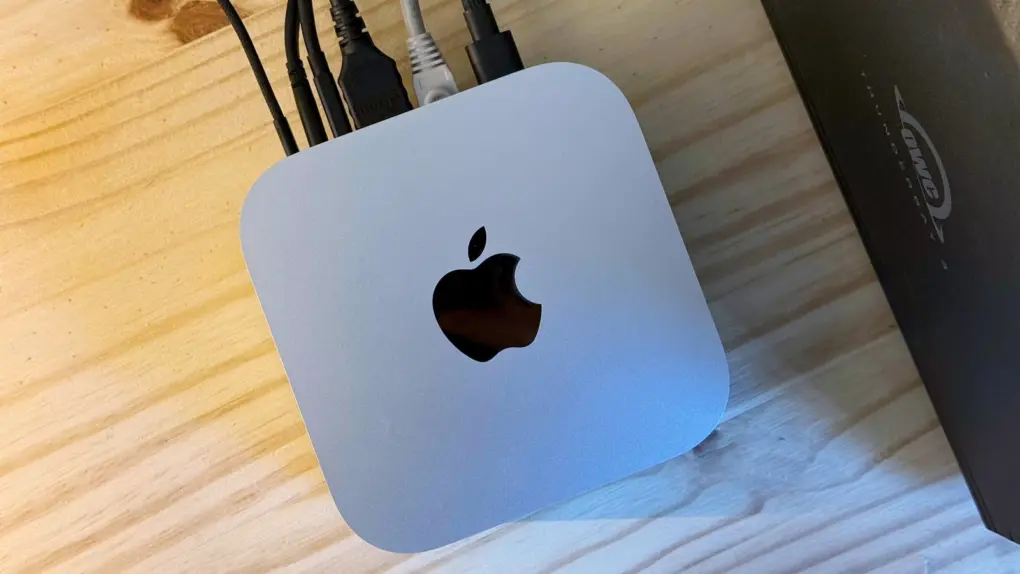
A year into owning an M4 Pro Mac mini, it began feeling slow. With dozens of Chrome tabs and numerous other apps running in the background, everything felt more sluggish than it should.
I was already convinced I needed an upgrade. Turns out, I just needed to do a little spring cleaning. Here’s what I did to speed up my slow Mac mini.
How I fixed my slow Mac mini
I typically use a Mac for five years before upgrading. However, my M1 Mac mini with 16GB of memory started stuttering when I had several heavy apps open in the background. Add in constant Bluetooth problems when connecting the computer to my Logitech MX Master 3s mouse, and I decided to upgrade in early 2025.
With AI and some future-proofing in mind, the M4 Pro Mac mini with 24GB of memory felt like the right choice. (See Cult of Mac’s review: Mac mini with M4 Pro is mightier and mini-er than ever.)
My goal wasn’t to run large language models locally, but to have enough headroom for Google’s Chrome browser, ChatGPT, Claude and five or six other apps running smoothly in the background without lag.
Table of contents: How I fixed my slow Mac mini
- Felt great at first
- Time for an upgrade? I thought so …
- A little bit of spring cleaning goes a long way
- Stop unnecessary apps from launching at startup to speed up your slow Mac
- Clean up Chrome to reduce memory usage
- AI tools are not as lightweight as they seem
- My Mac mini felt slow, but it was never really about the hardware
Felt great at first
For a few months, I was more than happy with the M4 Pro Mac mini. It was far from slow, and felt like a big leap over my M1 Mac mini (and even the 16-inch MacBook Pro with M1 Pro chip). Apps opened significantly faster. I experienced no lag or stutter, irrespective of the number of apps running in the background.
However, over a year later, that smoothness started to fade. There was no sudden drop in performance. But I started noticing slowdowns. Apps took longer to open. Switching between desktops caused dropped frames. And app switching took a second longer.
Admittedly, some of the slowdown can be attributed to macOS Tahoe and its new Liquid Glass user interface. And while macOS Tahoe 26.4 seems to have made things smoother, things are still not as good as they should be.
Time for an upgrade? I thought so …
At first, it felt like I had reached the limits of the M4 Pro Mac mini. The 24GB of unified memory suddenly didn’t seem like enough.
With 30 or 40 Chrome tabs open, several AI tools running in the background along with apps like Telegram, Slack, Asana, WhatsApp, Wispr Flow, and numerous other background tasks, I assumed the little Mac was running slow because it was out of memory.
However, opening Activity Monitor told a different story altogether.
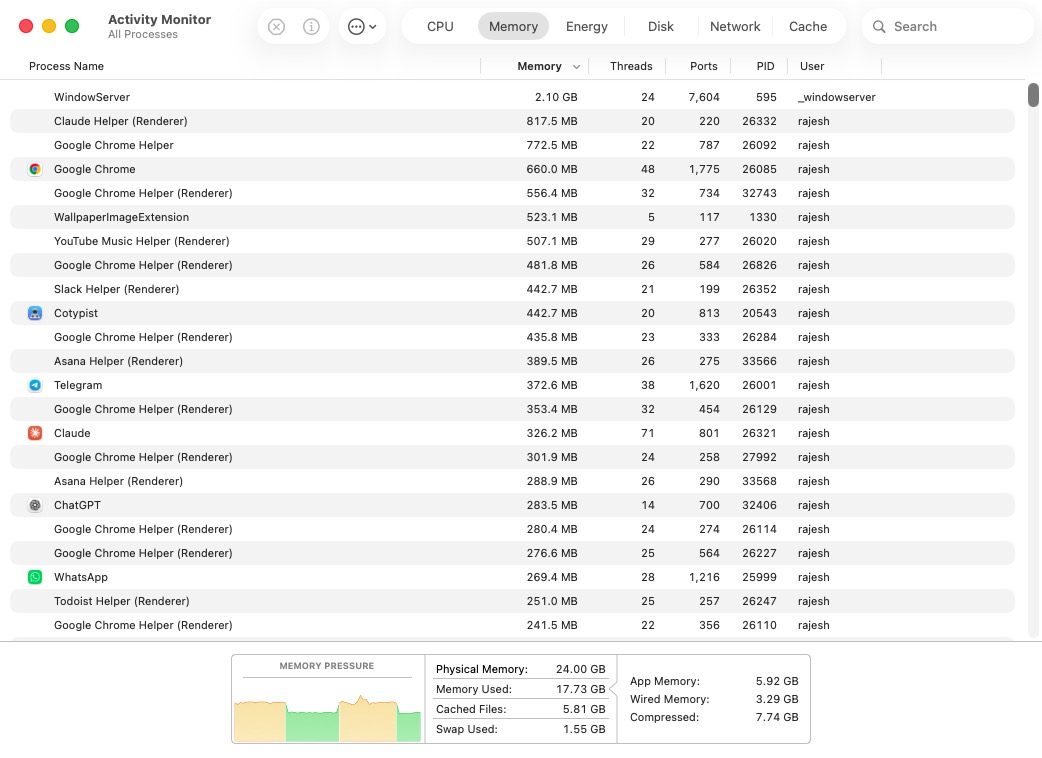
Photo: Rajesh Pandey/Cult of Mac
Memory pressure was in the green — it only sometimes jumped to yellow. Swap usage hovered around 1 or 2GB. High, but nothing unusual. The numbers indicated that, even though it seemed slow, my Mac mini was not really struggling.
A little bit of spring cleaning goes a long way
Based on the Activity Monitor data, it became clear that I should not start looking for an upgrade. Instead, I set out to find the root of the problem.
First, I looked through all the background services and their CPU consumption. For some reason, the Google Drive app was using a lot of my Mac’s CPU power. After trying the usual fixes, like restarting the Mac and pausing/resuming sync, failed, I uninstalled and reinstalled the app.
That seems to have fixed it. Over the next few days, my CPU usage rarely crossed 2%. Earlier, it would often sit at 20% or 30% in the background.
Auditing all the apps running in the background made me realize that several of them served the same purpose. For example, I installed Droppy a few months ago to replicate Dynamic Island functionality on my Mac. Droppy also features shelf-like functionality, making Yoink redundant.
Similarly, I was using Maccy as my go-to clipboard manager, even though Raycast offered similar functionality. Alt-Tab had also fallen out of regular use, with rcmd taking over for instant app switching.
So, I removed most of these overlapping apps, keeping only ones I actually used daily. This helped free up background resources for other, more important apps and tasks.
Stop unnecessary apps from launching at startup to speed up your slow Mac
Photo: D. Griffin Jones/Cult of Mac
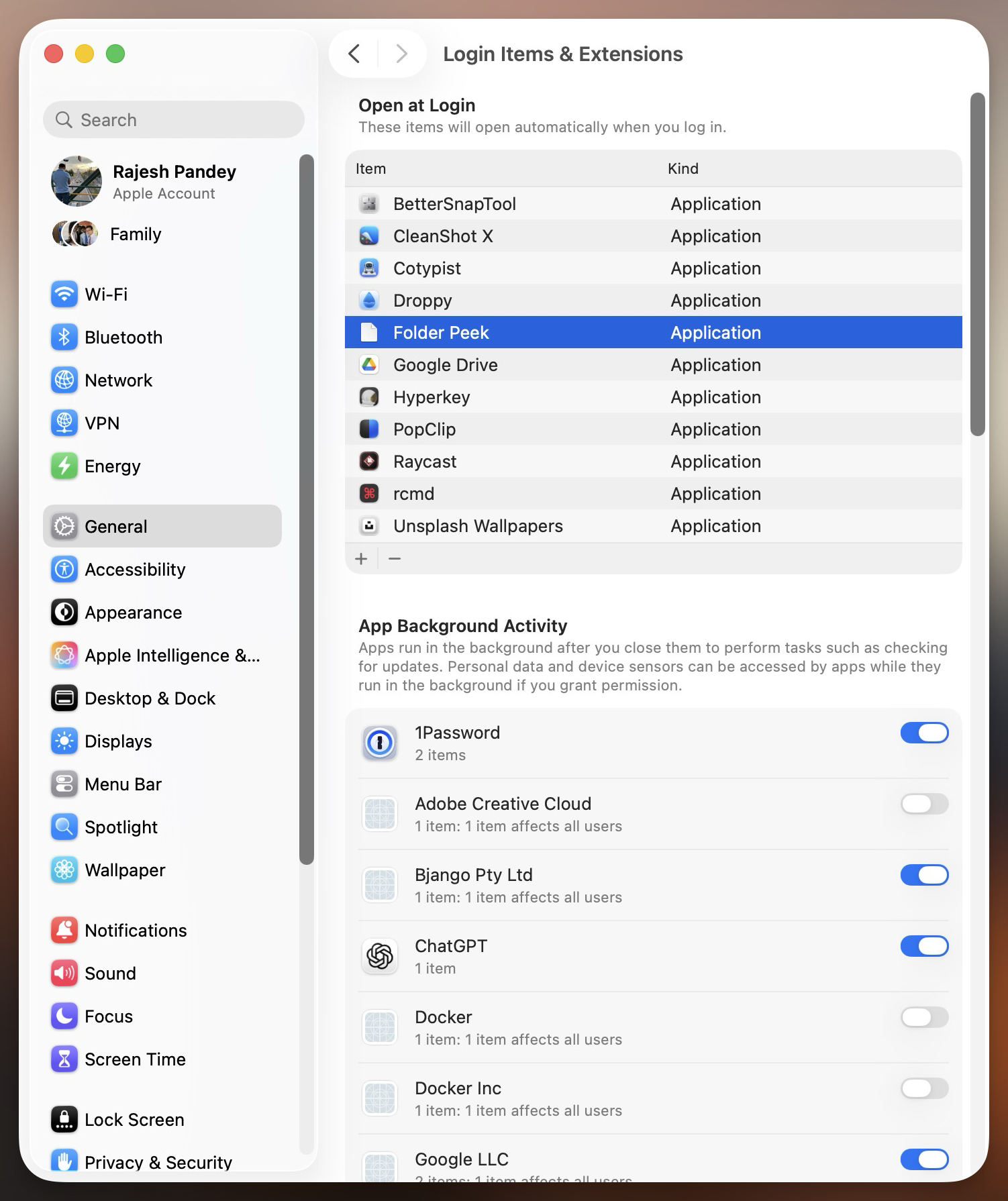
Next, I looked through the apps launching at startup and found another surprise. A shocking number of apps had added themselves to launch at startup. None of them seemed critical. And combined, they put an additional load on my Mac mini from the moment it booted up.
Screenshot: Rajesh Pandey/Cult of Mac
Disabling nonessential login items helped in a big way. If you have never checked your Mac’s startup apps, here’s how to do it:
- Open System Settings. Navigate to General > Login Items & Extensions.
- From the Open at Login box, review the list of apps that launch whenever your Mac boots up.
- Select any unnecessary app and click the – (minus) button to remove it
I removed several unwanted apps and background processes from this list, including OneDrive, Dropbox and Microsoft PowerPoint. I rarely ever used these apps, and there was no reason for them to launch at startup.
My Mac felt smoother and instantly ready for use after a restart. That was not the case earlier, as I always needed to wait a few minutes to let things settle down.
While digging through my Mac’s health, I also noticed unusually high storage use, with only around 50GB of free space left. Since most of my files live on a network-attached storage drive or Google Drive, that didn’t add up.
Turns out, Time Machine backups to the NAS had been failing repeatedly. Worse, the local snapshots it created before each backup quietly piled up, eating into the Mac’s storage.
After a bit of hunting around, I figured out how to delete the stuck snapshots using Terminal. If you are stuck in a similar situation, here’s how to fix the problem:
- Open Terminal and run the
tmutil listlocalsnapshots /command. This will display a list of snapshots that you probably never knew existed. - Delete them by running the
tmutil deletelocalsnapshotscommand.
Doing this freed up nearly 150GB almost instantly on my Mac.
Chrome needed a spring cleaning, too
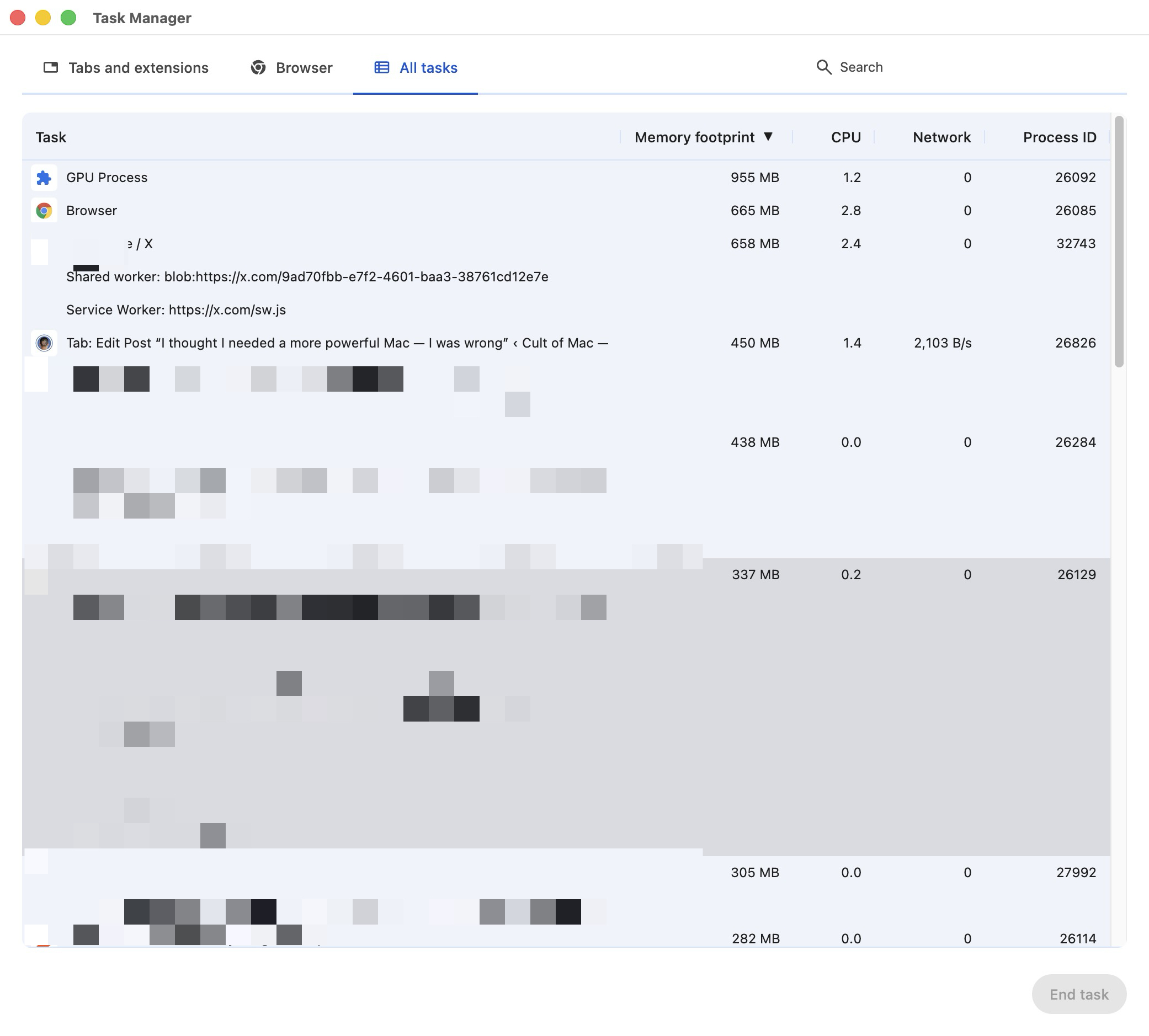
Screenshot: Rajesh Pandey/Cult of Mac
While all the above changes helped, the biggest resource hog still needed attention: Chrome. A quick look at my installed Chrome extensions revealed nearly a dozen that I rarely used. Removing the unused extensions helped free up resources on my Mac and made Chrome noticeably lighter to run.
You can do this too by opening Chrome and then tapping the Extensions (puzzle icon) in the toolbar. From there, select Manage extensions. This will display a list of all the installed extensions. Turn off whatever you no longer need or use.
I am not going to pretend I fixed my tab hoarding problem, though. Thirty-plus open tabs is just how I work, and no amount of productivity advice can change that. However, Chrome’s new vertical tab switcher proved surprisingly useful here. It’s accessible with the Shift + Cmd + A shortcut and provides a vertical list of all open and recently closed tabs.
Given the number of tabs I have open, a vertical list made it easier to quickly see the tabs I could close.
Having all open tabs visible as a scrollable sidebar made me more mindful of what was actually open. As a result, I started closing tabs that had been left untouched for days or served little purpose.
All this helped reduce Chrome’s typical memory footprint on my Mac mini to approximately 10GB from around 16GB. That delivered a meaningful improvement, with almost no major usability change from my side.
AI tools are not as lightweight as they seem
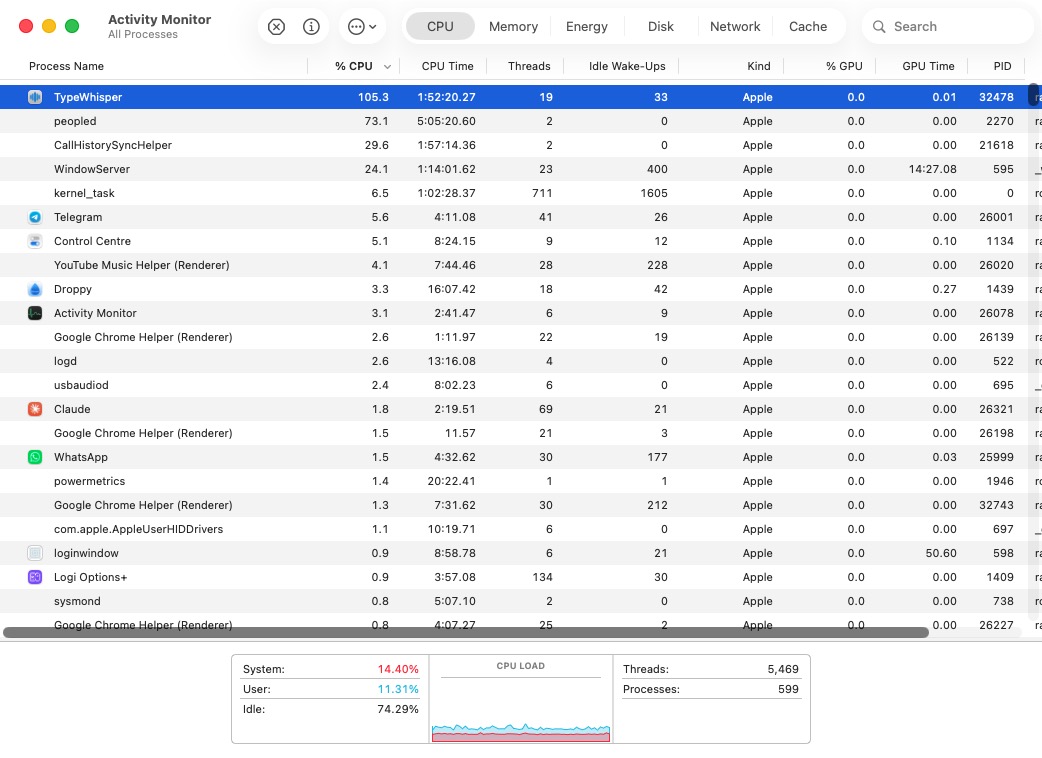
Screenshot: Rajesh Pandey/Cult of Mac
Another major contributing factor to my Mac mini’s sluggishness was AI. In recent months, I began heavily using several AI tools, including ChatGPT, Google Gemini and Claude. In addition, I utilize several AI-powered apps regularly, and they load small models in the background. They boost my productivity, getting things done faster and more efficiently.
Individually, none of them is a resource hog. But when combined with tens of Chrome tabs and other background apps, it all adds up.
You can check the resource usage of such apps by following these steps:
- Open Activity Monitor and switch to the CPU tab.
- Look for apps with high “% CPU” usage and CPU time.
These are the apps that are silently eating up your Mac’s resources and making everything feel slow.
After a quick check, I became more mindful of the AI tools running in the background on my Mac mini. Now, I only open Claude when actively working on a project. Likewise, uninstalling AI-powered apps that offered little value, especially for the resources they consumed, helped.
My Mac mini felt slow, but it was never really about the hardware
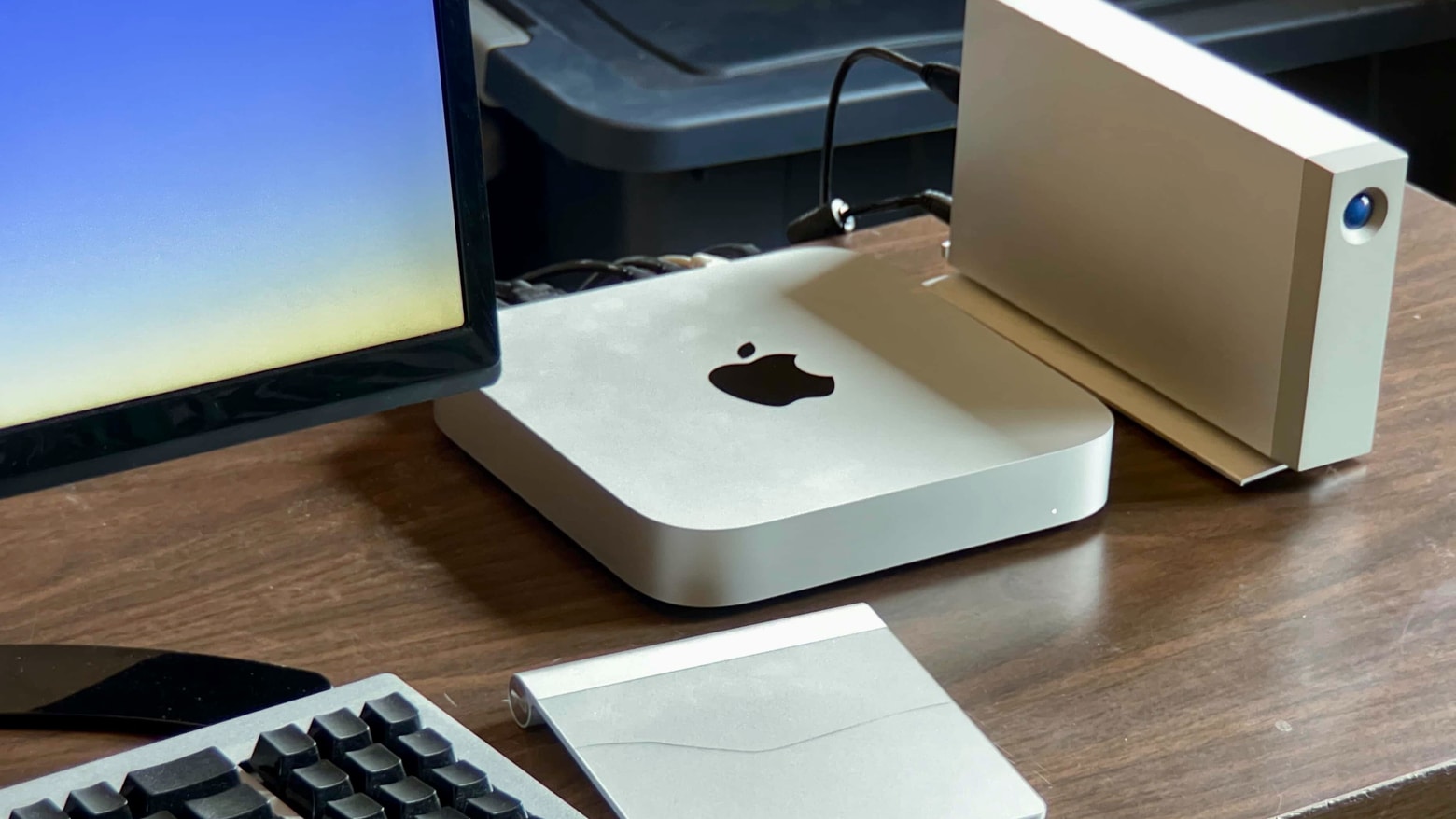
Photo: D. Griffin Jones/Cult of Mac
My biggest takeaway from all this spring cleaning trying to fix my slow Mac mini? The machine itself was never really the bottleneck.
The diminutive desktop computer packs enough power and resources to handle even my most demanding tasks. But that power cannot magically make up for my chaotic workflow and poor usage habits. Opening 30 or 40 Chrome tabs across multiple windows, leaving AI tools running in the background, and having a dozen background processes here and there — it all adds up. It can make even a powerful machine feel sluggish.
All I needed to do was a bit of decluttering and spring cleaning. And that freed up enough resources to make a big difference in my Mac mini’s responsiveness in daily use. If your Mac seems slow, I recommend that you take the same steps I did to speed things up.

Rajesh has been writing about consumer technology for over a decade, with a strong focus on iPhones, Macs and Apple’s ecosystem. He enjoys digging into Apple software updates, hardware changes, and discovering new Mac apps that make work faster and more enjoyable.

